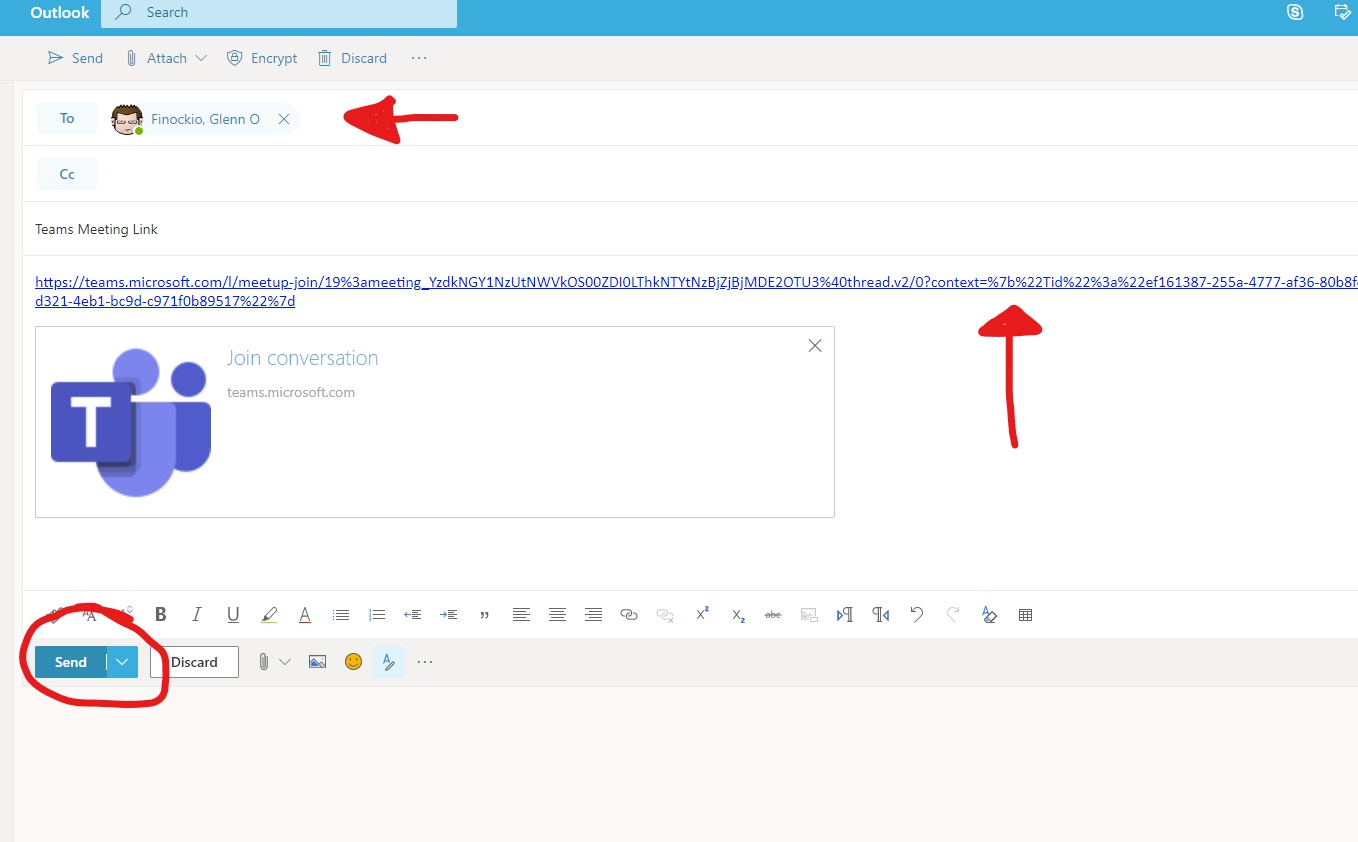
Setting Up A Microsoft Teams Meeting Link, In Pictures And Words
Start in the Outlook Web App: OUTLOOK
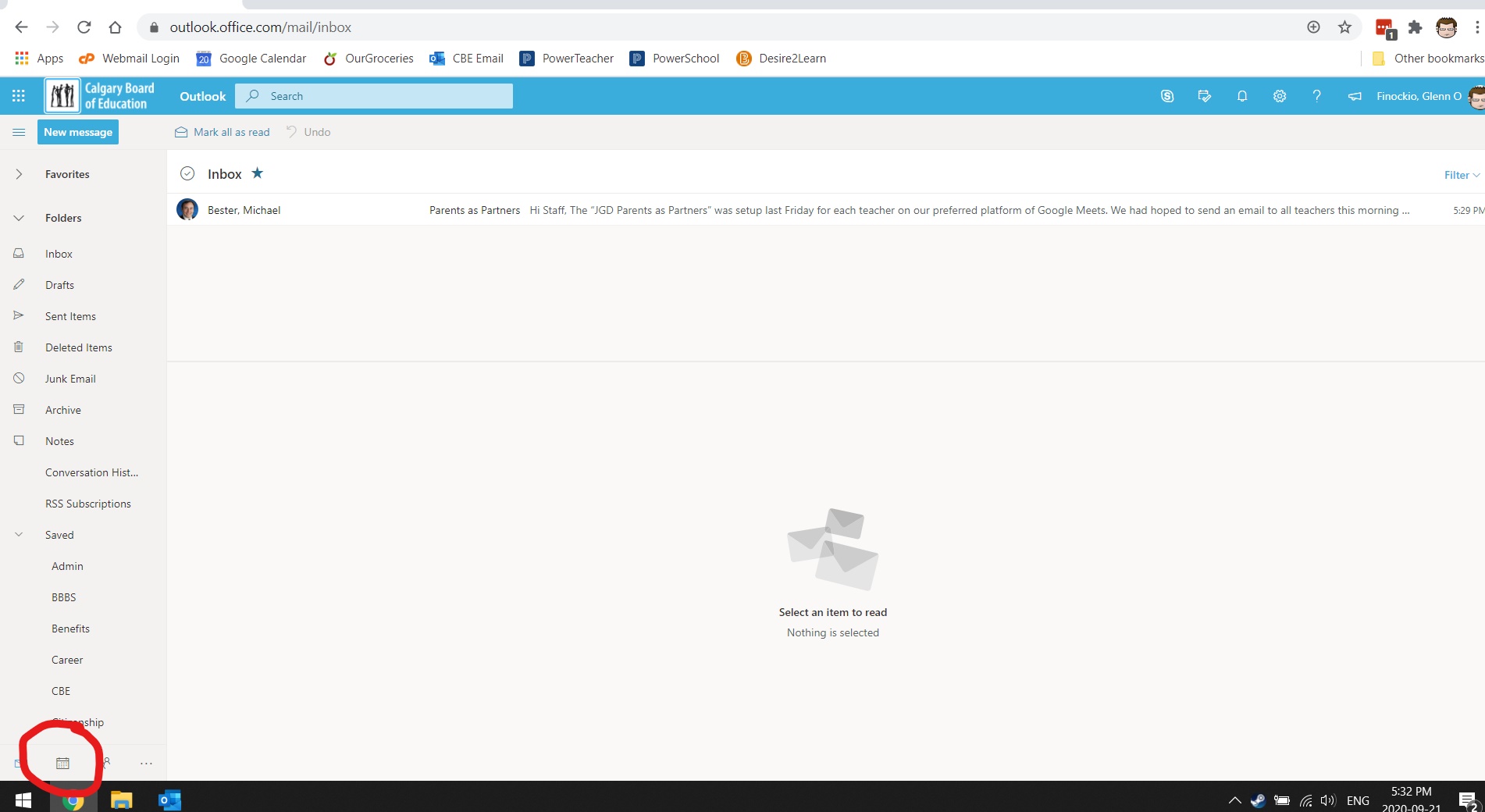
Step 1: Open up the Office 365 Outlook web application, and navigate to the "Calendar" tab by clicking the calendar icon in the bottom left corner of the window.
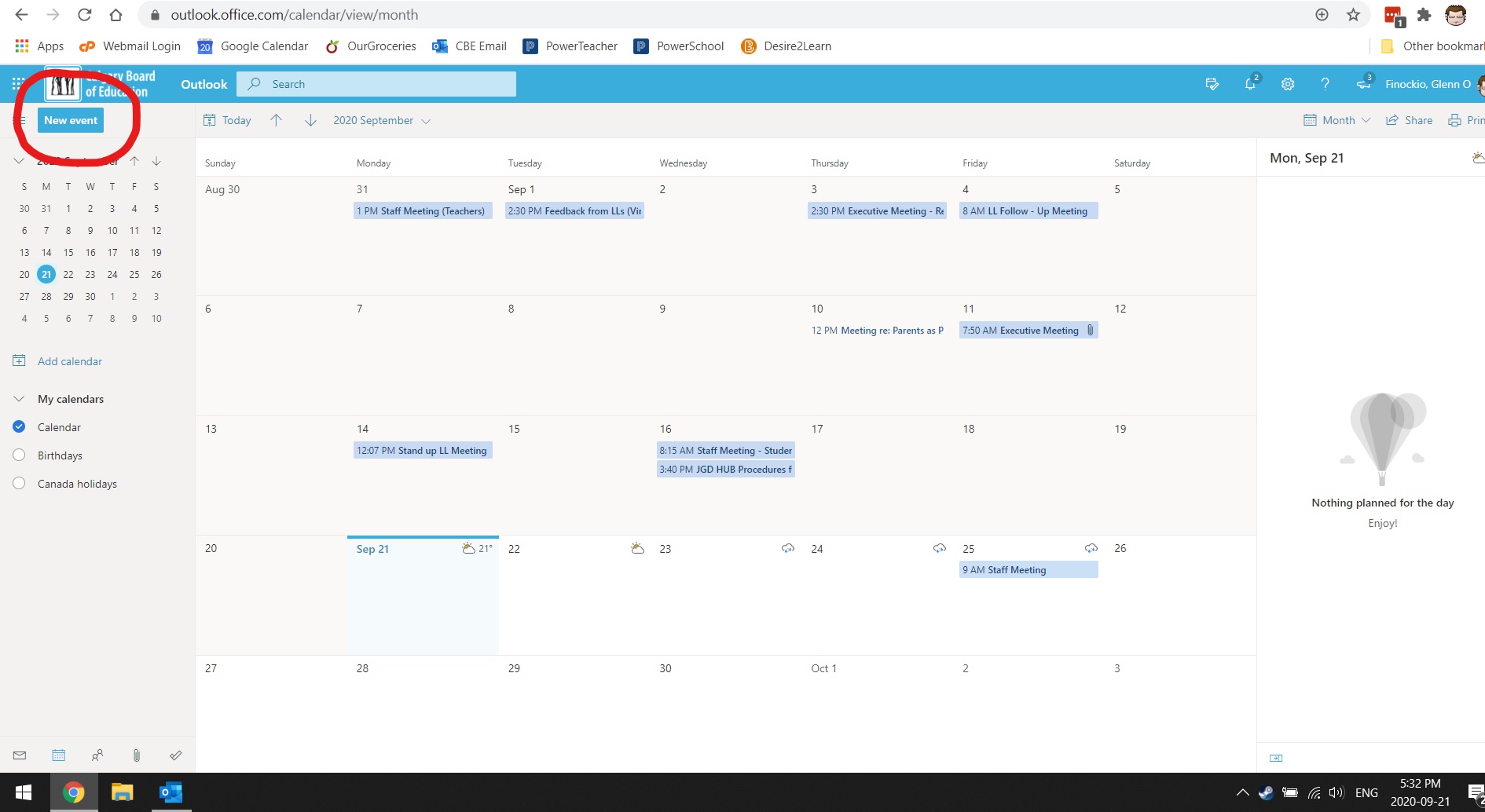
Step 2: Click on the "New Event" button on the top left of the window.
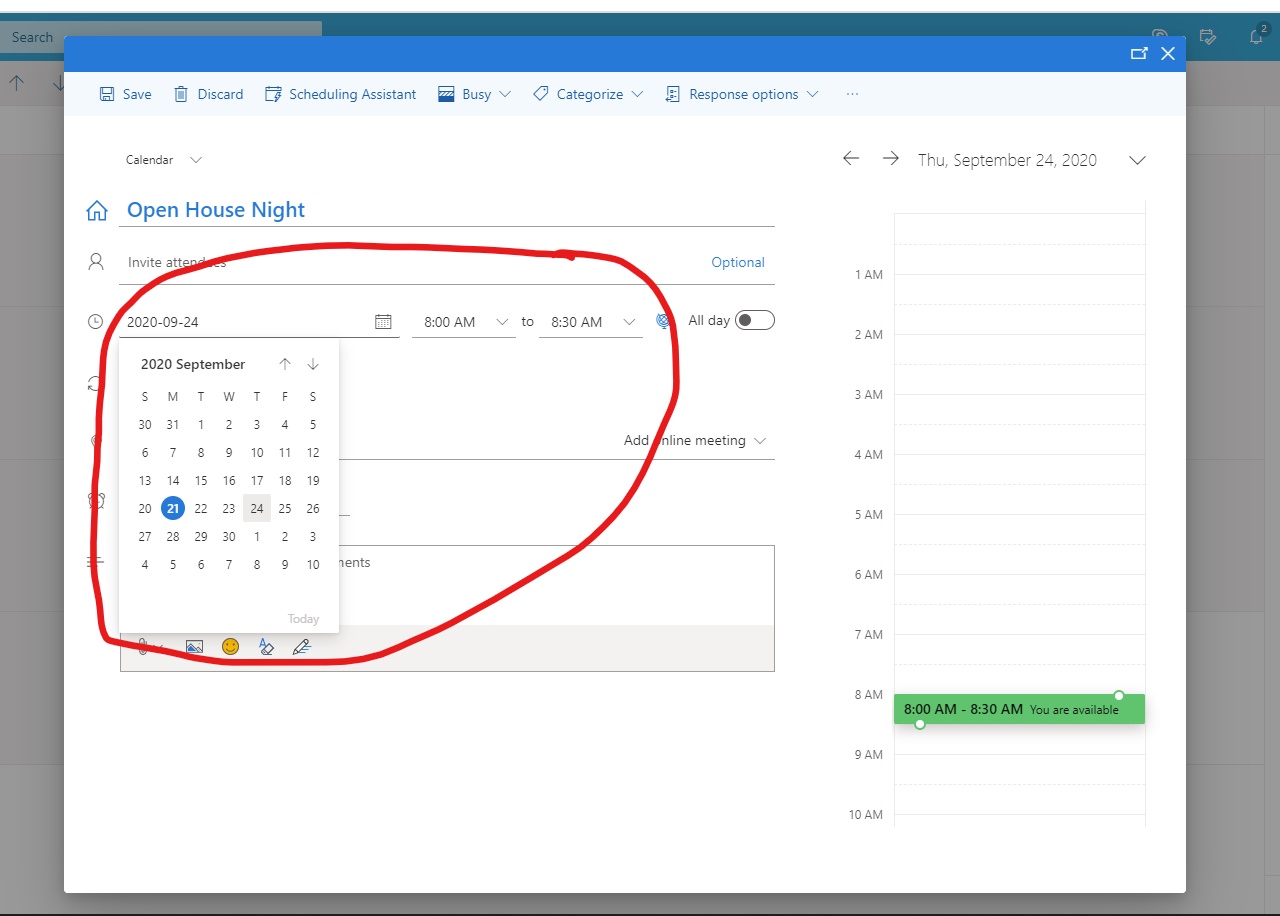
Step 3: Choose the date and time - September 23rd, 7:00PM - 8:30PM.
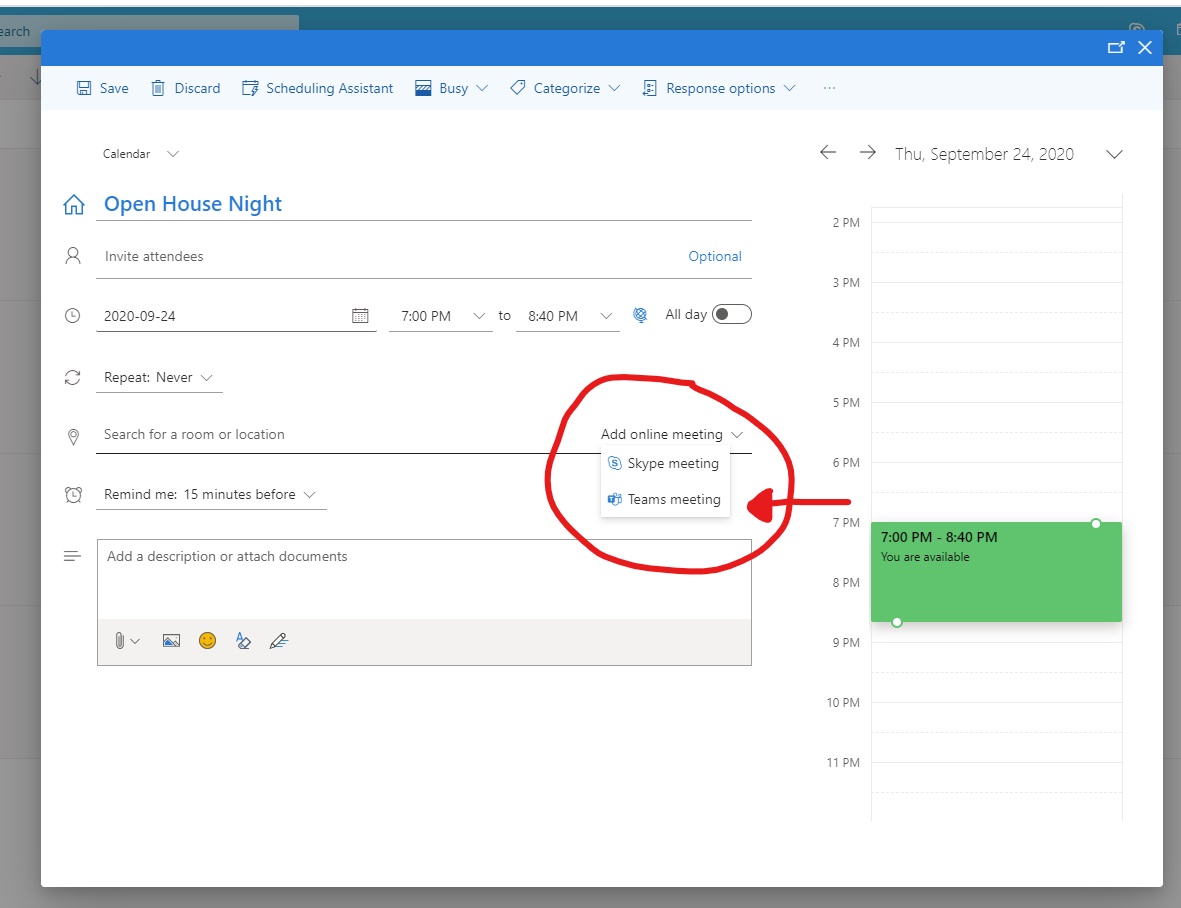
Step 4: Go to "Add online meeting" and choose "Teams meeting". Send the meeting and choose the "Save" option.
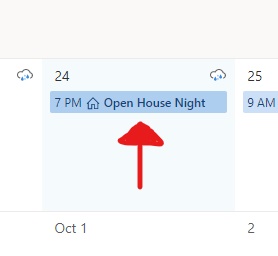
Step 5: Double click on the newly created meeting in your calendar.
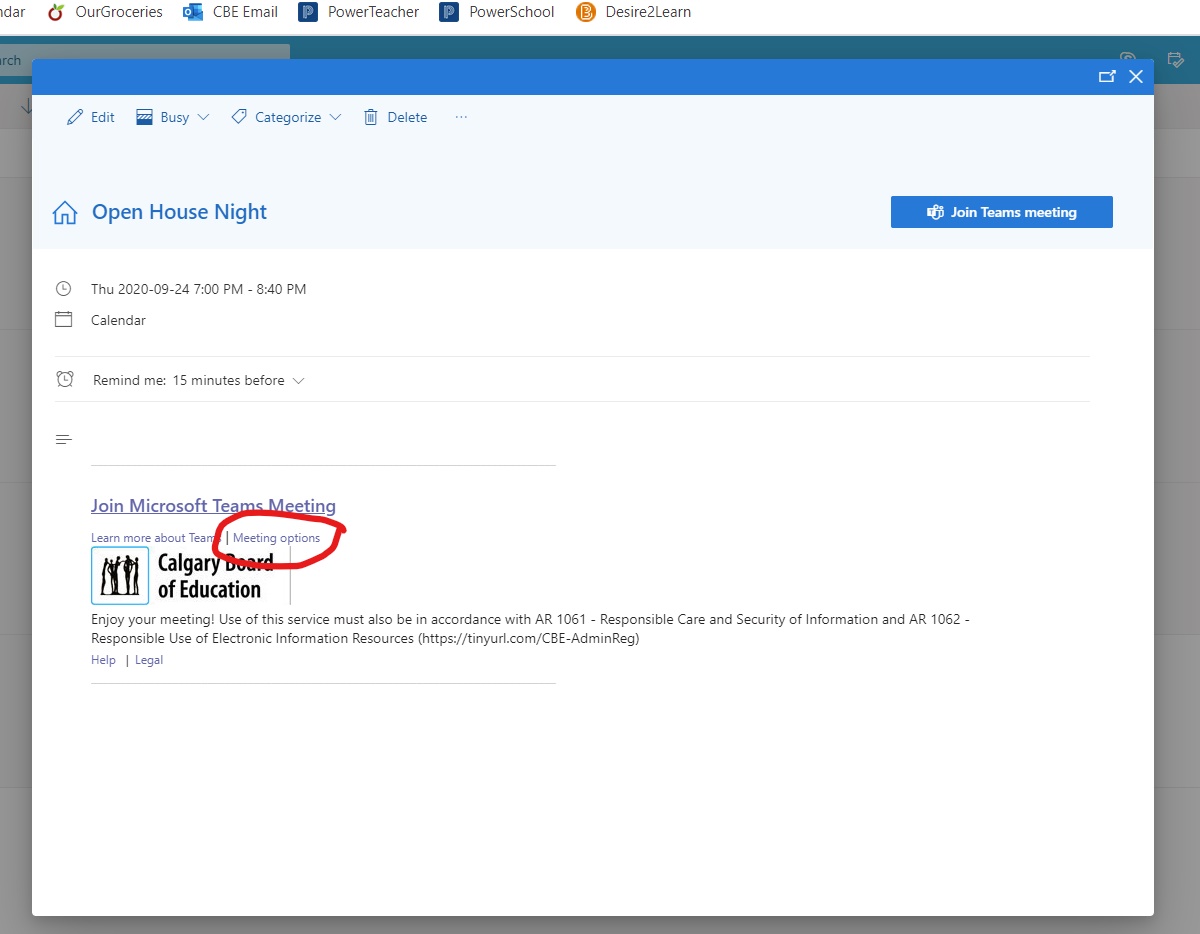
Step 6: Click on "Meeting options" below the "Join Microsoft Teams Meeting" link.
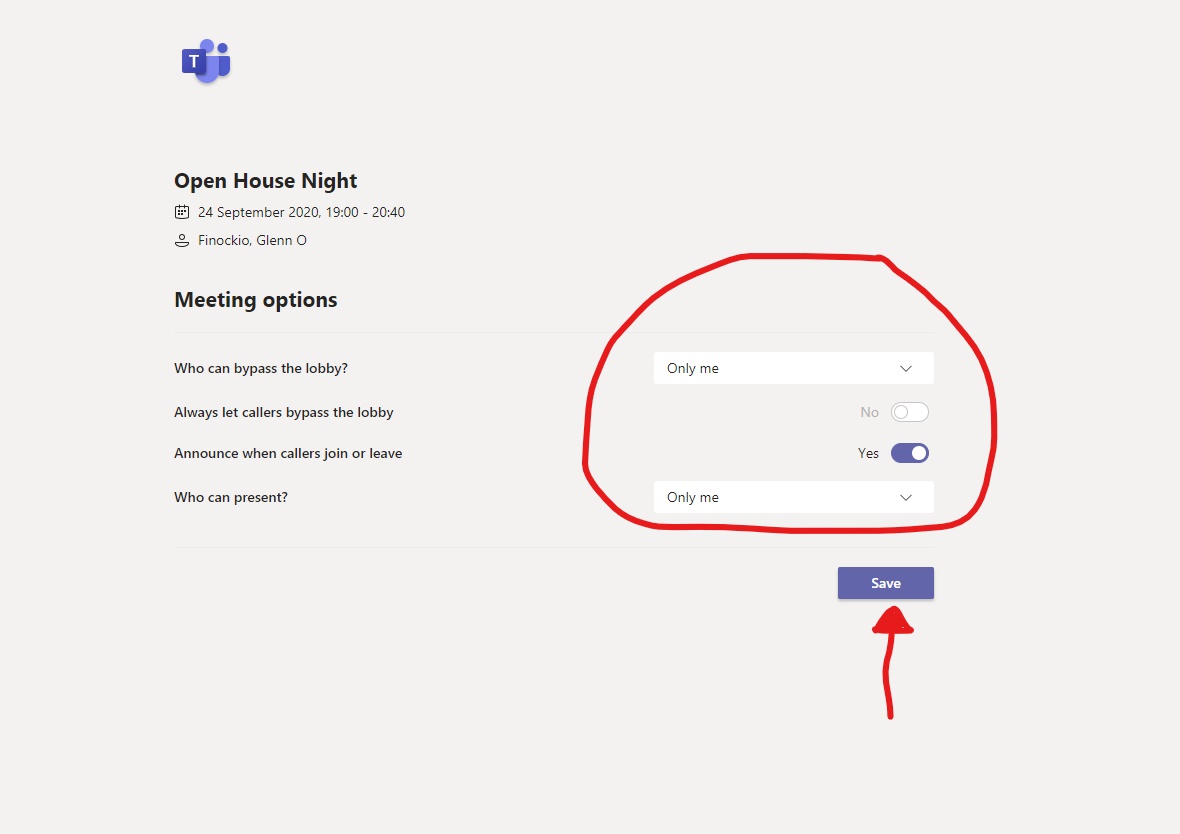
Step 7: Change the settings to match what is shown below.
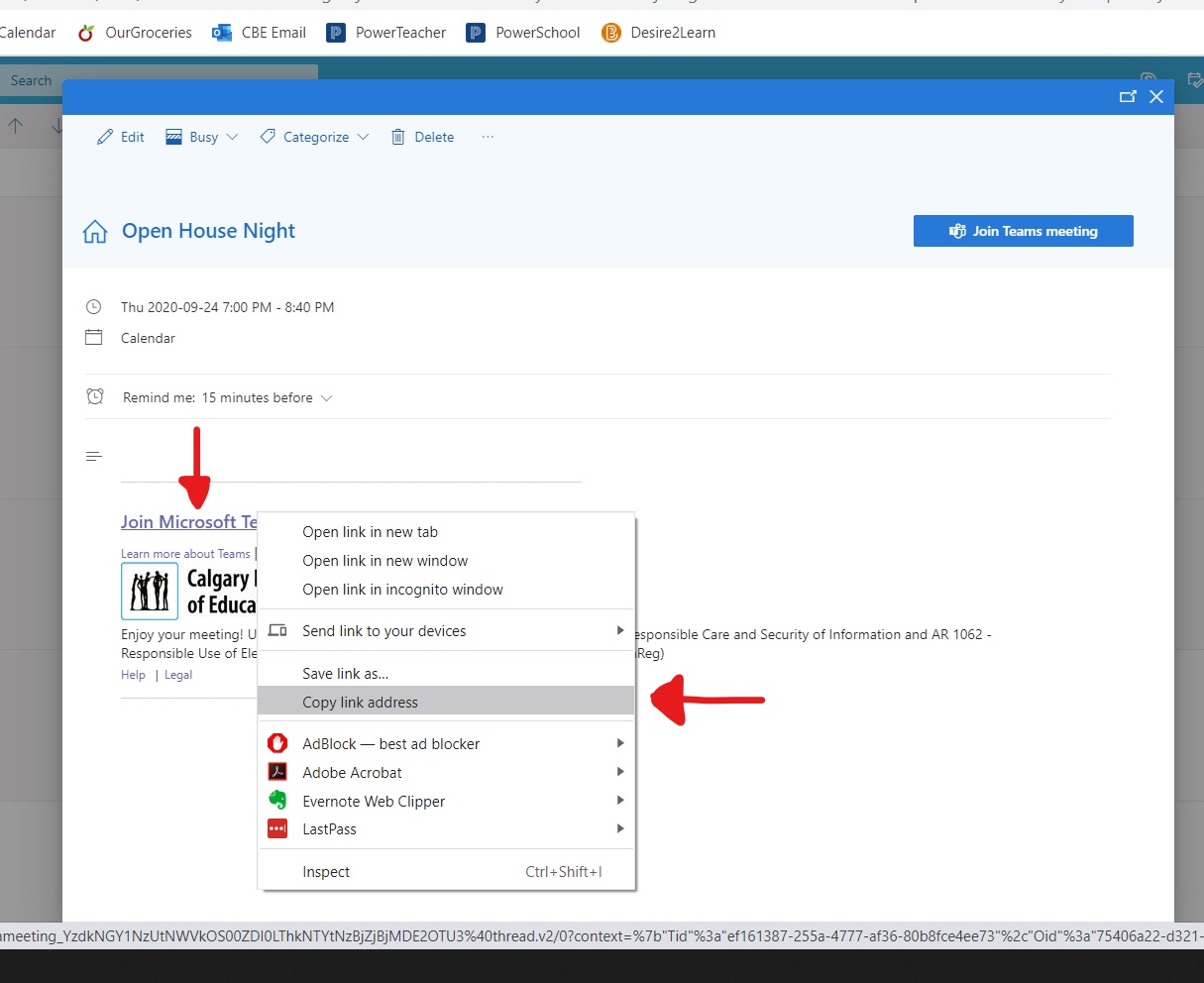
Step 8: Right-click on the "Join Microsoft Teams Meeting" link in the screen shown, and copy the link address.
Step 9: Create a new email to gofinockio@cbe.ab.ca and paste the link in the message portion of the email (any format will do). Send the email.